SSH Challenge
This section will go over the SSH challenge and how to solve it.
Please note: although passwords, hosts, etc are given, the challenge is
no-longer active so none of them will work.
Basic SSH
This initial challenge was simply connecting to the base VM with a
provided username and password.
ssh ritlug@demo.ritlug.comIn the home directory there is a file called hint.md. Since no text
editors were installed, you had to use the cat command to view the
contents of the file.
host: localhost
user: ritlug1
port: 8888
password: password21 SSH With Different Port
Based on the previous hint, you have to SSH into another SSH server
from the base VM running on a non-default port.
# on main connection(demo.ritlug.com)
ssh ritlug1@localhost -p 8888
Once again you will find a file called hint.md in the home directory.
There is also a key file called id_rsa in the home directory.
Time to jump ships again :)

host: ssh2
port: 22
user: ritlug2
auth: key in home directory SSH With Key File
While in the first container, SSH into another container with a key
file.
# on ritlug1@localhost connection
ssh ritlug2@ssh2 -i id_rsa
The hint in this vm is as follows:
Shall we play a game?

SSH back into the starting vm (demo.ritlug.com)

host: localhost
port: 3333
user: ritlug4
password: something? SSH into Custom SSH Python
Server
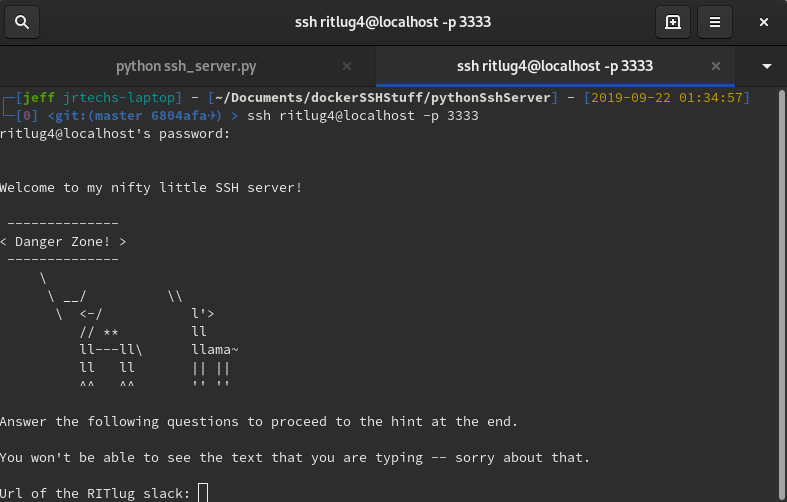
SSH into a custom SSH server and play a RITlug trivia game.
# on main ssh connection
ssh ritlug4@localhost -p 3333
ssh game
Since the screenshot does not show it, here are the answers to the
three RITlug trivia questions:
rit-lug.slack.com
teleirc
mirrors.ritlug.com Access and Play and Hack Game
on Internal Web Server
This is the part of the challenge where it starts getting more
difficult. This challenge requires you to port forward
localhost:someport to the remote machine’s localhost:7777 so you can
access a website on your computer.
# On your computer
ssh -L 7777:localhost:7777 ritlug@demo.ritlug.com
The key was given in the last hint as “ritlugFunziesPassword”.
ssh game
Open web browser and play the game….
ssh game
The game is way to hard to win; hack it! There are many ways to hack
this basic Javascript game, but, the most basic is to just tell the
server that you are scoring a ton of points and then navigate to the
/endgame page.
//run this in the console of the game or end game page
for(var i = 0; i < 500; i++)
{
    console.log("Sending stonks.");
    $.ajax({
        type:'POST',
        url: "/stonks",
        crossDomain: true,
        dataType: "json",
        timeout: 3000
    });
}
After you acquired a score of over 100 “stonks” you see this at the
/endGame page.
ssh game
Forward Local Web Server to
Remote Host
Deciphering and figuring out how to complete this challenge was by
far the hardest challenge. There was a remote nginx web server running
in a docker container which only had its SSH and web ports exposed.
Here is the nginx config for this server:
worker_processes 1;

events { worker_connections 1024; }

http {
    server {
        listen 80;
        location / {
            proxy_pass         http://localhost:4444;
            proxy_redirect     off;
            proxy_set_header   Host $host;
            proxy_set_header   X-Real-IP $remote_addr;
            proxy_set_header   X-Forwarded-For $proxy_add_x_forwarded_for;
            proxy_set_header   X-Forwarded-Host $server_name;
        }
    }
}
To complete this challenge you had to make a web server running on
port 4444 visible to the nginx server. To do this it took three steps.
First, you have to start some web server. Second, you had to local
forward the external VM’s ssh port to your computer. Next using that
local forwarded port, you have to reverse forward the port of your web
server to the remote computer.
# start your web server listening on port 8989 or something
node server.js

# forward the ssh port of the remote machine to your local computer.
ssh -L 5555:localhost:5555 ritlug@demo.ritlug.com

# forward your web server to the remote machine
ssh ritlug6@localhost -p 5555 -R 4444:localhost:8989
Once this is done, your local web-server will be visible on
demo.ritlug.com. Neat.
High Level Answer Key
key diagram
Installing an Instance of this
Challenge
This section goes over how to run the docker containers used in this
challenge on a stock Debian install.
Install Docker
apt update
apt upgrade
apt install apt-transport-https ca-certificates curl software-properties-common gnupg2
curl -fsSL https://download.docker.com/linux/debian/gpg | sudo apt-key add -
add-apt-repository "deb [arch=amd64] https://download.docker.com/linux/debian $(lsb_release -cs) stable"

apt update
apt install docker-ce Install Docker-Compose
curl -L https://github.com/docker/compose/releases/download/1.25.0-rc2/docker-compose-`uname -s`-`uname -m` -o /usr/local/bin/docker-compose
chmod +x /usr/local/bin/docker-compose Create Firewall
Create firewall to block everything that is not ports 80 or 22
apt-get install ufw
ufw enable
ufw allow 22:80/tcp
ufw deny 1000:9999/tcp Docker Firewall Trickery
Docker tampers directly with IPTables, so, ufw alone won’t block
people from accessing the internal services running on ports 7777,
etc.
When When Running Single
Container
Edit /etc/default/docker and uncomment the DOCKER_OPTS line:
DOCKER_OPTS="--dns 8.8.8.8 --dns 8.8.4.4 --iptables=false" Running Docker Compose
Since we are using systemd with Docker Compose, we have to set the
iptables flag by creating the following file with:
/etc/docker/daemon.json
{
    "iptables": false
} Add Base User For Demo
useradd -ms /bin/bash ritlug
echo ritlug:ritLugSep6! | chpasswd Install project files on
system
git clone https://github.com/jrtechs/ssh-challenge.git

cd ssh-challenge

# Prevents the ritlug user from modifying the hint file
cp hint.md /home/ritlug/hint.md
chmod 0555 /home/ritlug/ Running the Project
docker-compose build
docker-compose up Resources